


Finding specific academic papers can feel like searching for a needle in a haystack. While Google Scholar is a powerful tool for researchers, its most effective features are often hidden behind menus. By mastering Google Scholar Advanced Search, you can filter through millions of articles to find the exact peer-reviewed data you need. This guide will show you how to access these hidden tools and use search operators to streamline your literature review process.
What is Google Scholar Advanced Search?
Google Scholar includes an advanced search feature that helps you find more precise and relevant academic papers. It is an essential tool for researchers who need to filter out noise and locate specific scholarly literature. Instead of relying on basic keyword searches, advanced search allows you to filter results by specific parameters such as the author, publication name, or a specific date range.
Mastering Google Scholar Search Operators (Advanced Guide)
Most users only apply basic operators in isolation. However, the real power of Google Scholar comes from combining multiple operators into a single, precise search string. This allows you to filter millions of papers down to highly specific, relevant results in seconds.
How to Combine Operators for Precision
Instead of using one operator at a time, you can layer them together to control exactly what appears in your results.
Example Search String:
author:"Geoffrey Hinton" AND "neural networks" -tutorial source:"IEEE"
Why this works:
- author:”Geoffrey Hinton” restricts results to a specific researcher.
- “neural networks” ensures the exact topic appears.
- -tutorial removes beginner or non-academic content.
- source:”IEEE” focuses on a specific publication source.
This type of query mimics how experienced researchers search, combining filters into a single, efficient command.
Advanced Search String Examples
Below are more complex examples you can use and adapt depending on your research goal.
1. Finding Highly Specific Research Papers
"deep learning" AND cancer diagnosis source:"Nature Medicine" -review
Use case: Finding original research (not reviews) in a high-impact medical journal.
2. Exploring Multiple Terms for the Same Concept
("artificial intelligence" OR "machine learning") AND healthcare policyUse case: Capturing different terminology used across papers.
3. Narrowing Results by Title Only
allintitle: blockchain security
Use case: Finding papers where the core topic is central, not just mentioned in passing.
4. Excluding Irrelevant Fields
"jaguar" -car -animal
Use case: Removing ambiguous meanings of a keyword.
Common Mistakes to Avoid
Even small mistakes in your search syntax can dramatically reduce the quality of your results.
- Not using quotation marks for exact phrases
Searching: machine learning healthcare
Better: “machine learning” healthcare
Without quotes, Google splits the phrase and returns less precise results. - Using lowercase Boolean operators
Incorrect: machine learning or ai
Correct: machine learning OR AI
Operators like OR must be capitalised to work properly. - Overloading your search with too many filters
Adding too many constraints can return very few or zero results. Start broad, then refine. - Forgetting the minus (-) operator
This is one of the easiest ways to instantly improve result quality by removing irrelevant topics.
Pro Tip: Build Your Search Step by Step
Instead of writing a complex query all at once, build it gradually:
- Start with a broad keyword (e.g. machine learning healthcare)
- Add exact phrases (“machine learning”)
- Introduce filters (author:, source:)
- Remove noise using -terms
This iterative approach ensures you do not accidentally filter out useful results while refining your search.
Real Examples: How to Use Google Scholar Advanced Search Like an Expert
Understanding operators is useful, but seeing them in action is what truly improves your research. Below are real-world examples that show exactly how to structure your searches, why they work, and what kind of results you can expect.
Example 1: Finding Peer-Reviewed AI Healthcare Papers
Search Query:
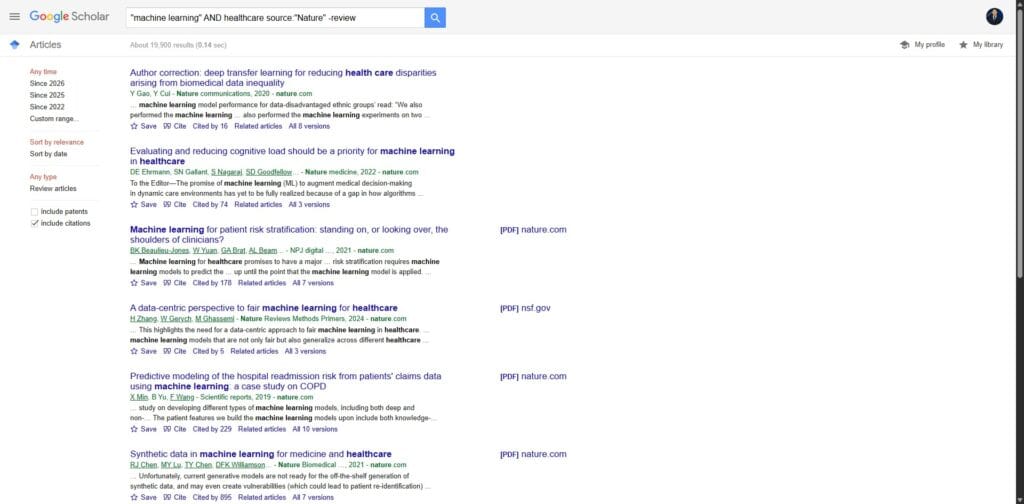
"machine learning" AND healthcare source:"Nature" -review
Why this works:
- “machine learning” ensures the exact phrase appears in results.
- AND healthcare narrows the topic to medical applications.
- source:”Nature” limits results to a high-authority journal.
- -review removes review papers, focusing on original research.
What results look like:
- Highly relevant academic papers from trusted journals
- Fewer opinion or overview articles
- More data-driven, experimental studies
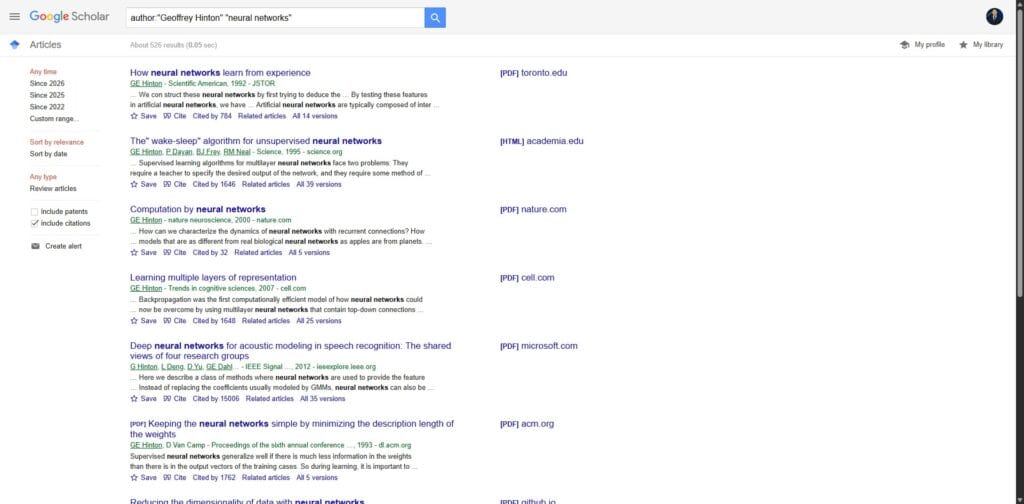
Search Query:
author:"Geoffrey Hinton" "neural networks"
Why this works:
- author:”Geoffrey Hinton” restricts results to that specific researcher.
- “neural networks” ensures topic relevance.
What results look like:
- A curated list of publications by the author
- Highly cited foundational papers
- Minimal unrelated content
Example 3: Combining Topics with OR for Broader Discovery
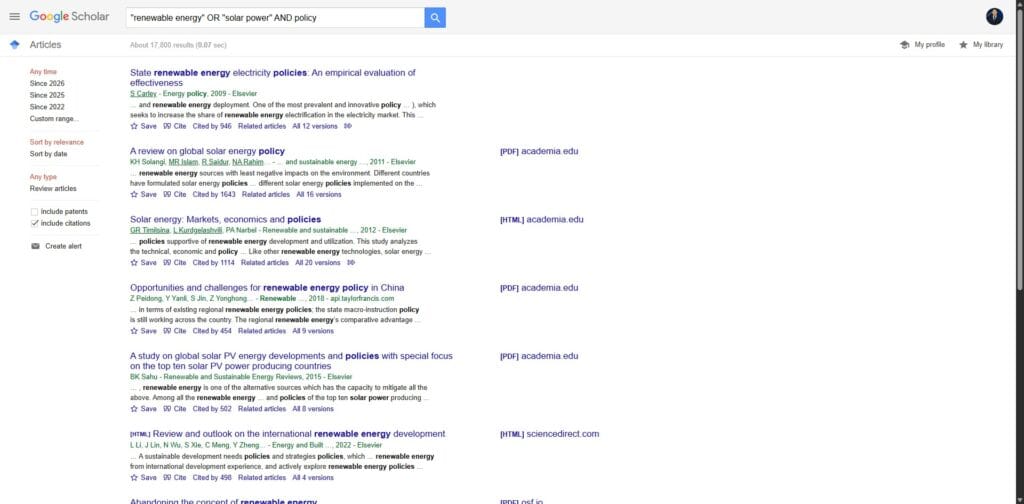
Search Query:
"renewable energy" OR "solar power" AND policy
Why this works:
- OR captures variations of the same concept.
- AND policy ensures results focus on regulation and governance.
What results look like:
- A broader set of papers across related terms
- Coverage of multiple subfields
- More comprehensive literature discovery
Visual Guide: Key Google Scholar Features Explained
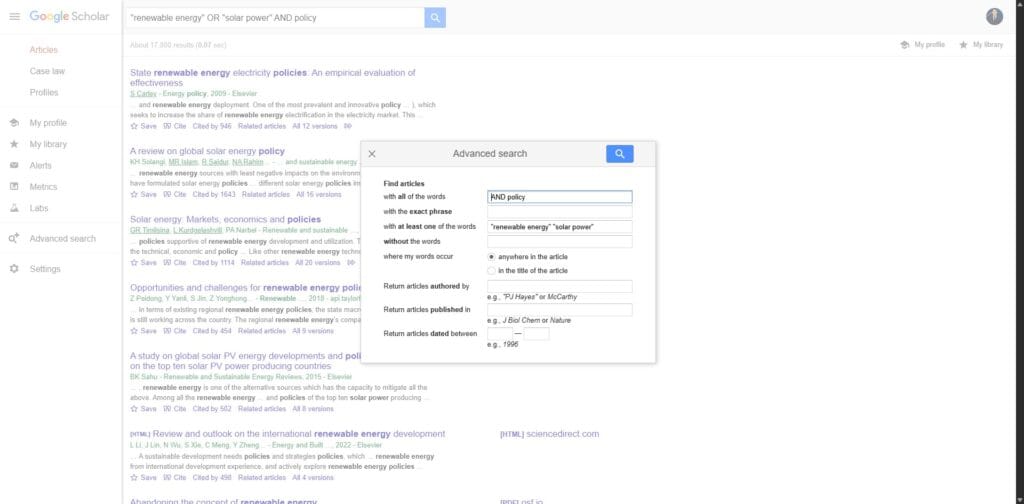
If you are new to advanced search, these screenshots will help you quickly locate the most important features inside Google Scholar.
This menu allows you to filter by author, publication, and date without typing operators manually.
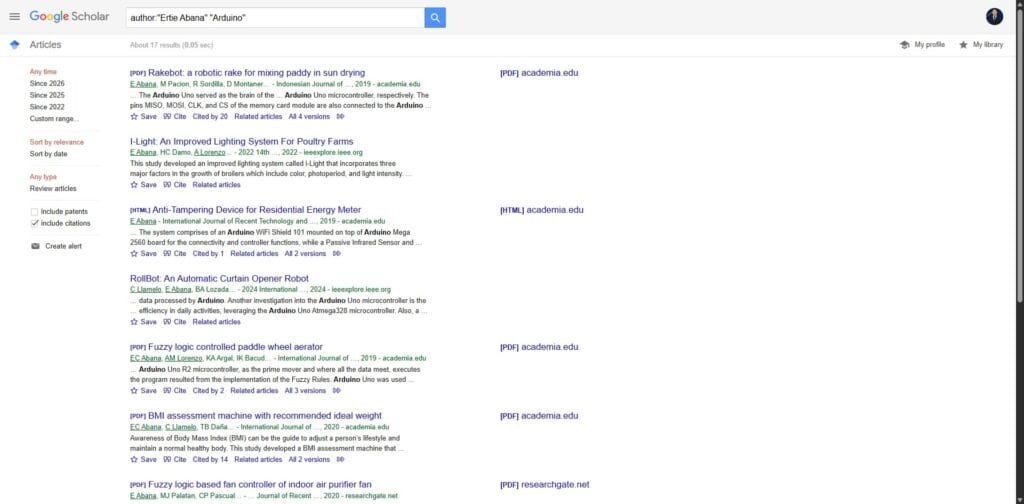
Using Operators Directly in the Search Bar
Typing operators directly is often faster and more flexible than using the menu.
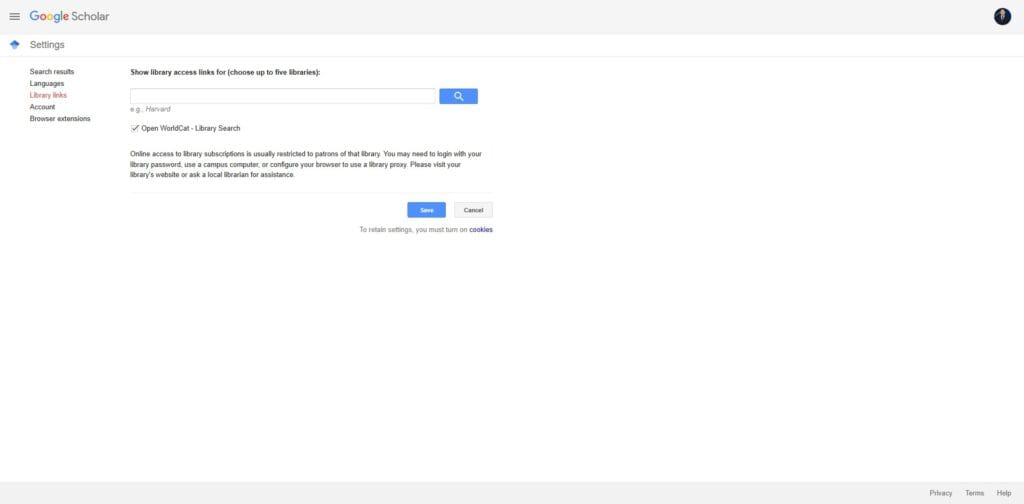
Enabling Library Links for Full-Text Access
Connecting your institution gives you access to subscription-based research papers.
Boolean Search Techniques for Precision
Boolean operators are the backbone of professional research. They allow you to combine or exclude terms to create complex search strings. It is important to note that these must be typed in capital letters for Google to recognise them as commands.
- AND: Google applies this by default. Searching for climate change finds results with both words.
- OR: Use this to find papers that might use different terms for the same concept. For example: “renewable energy” OR “solar power”.
- NOT: Use the hyphen immediately before a word to exclude it. For example: mercury -planet will help you find the element instead of the planet.
Advanced Feature: Using Library Links
One of the most underused features of Google Scholar is Library Links. If you are affiliated with a university, you can link your account to your institution’s library to access papers that are usually behind a paywall.
- Go to Settings in the side menu.
- Click Library links.
- Search for your university or institution.
- Save your settings.
Once this is active, your search results will show a “Full-Text @ My Library” link next to articles. This allows you to bypass paywalls legally using your institutional login.
Common Research Mistakes to Avoid
Many users fail to get the most out of Google Scholar because they treat it like a standard search engine. Avoid these common pitfalls:
- Searching Full Questions: Do not type “How does global warming affect polar bears?”. Instead, use keywords: global warming “polar bears” impact.
- Ignoring the Sidebar: The sidebar allows you to include or exclude patents and citations. Excluding these can often remove hundreds of irrelevant results.
- Not Checking “Related Articles”: If you find one perfect paper, the “Related articles” link is the fastest way to find similar studies that may not have appeared in your initial search.
How to Automate Your Research with Alerts
One of the most powerful aspects of Google Scholar advanced search is the ability to automate your discovery. Instead of manually searching every week, you can set up alerts that notify you when new papers matching your criteria are published.
- Perform your advanced search using your preferred operators.
- On the results page, click the Create alert button in the left sidebar.
- Confirm your email address and the number of results you wish to receive.
For more detailed information on this topic, you should check out our full guide about managing Google Scholar alerts.
Using Advanced Search for Case Law
Google Scholar is not only for journals. It is also a massive database for legal documents and court opinions. If you are a legal professional or a law student, you can narrow your search to specific jurisdictions.
- On the homepage, select the Case law radio button.
- Click Select courts to choose specific UK or international jurisdictions.
- Use the advanced search menu to find specific rulings by date or court name.
Exporting Results to Reference Managers
Once you have used advanced search to find the perfect source, you must organise it. Google Scholar allows you to export citations directly into software such as Zotero, EndNote, or Mendeley.
- Go to Settings and select Bibliography Manager.
- Choose your preferred format, such as BibTeX or RIS.
- A link to “Import into [Manager]” will now appear under every search result.
If you wish to learn more about this process, you can read our full guide about integrating reference managers with your research results.
Google Scholar vs. Institutional Databases
While Google Scholar is excellent for broad discovery, it has limitations compared to university library databases. It is important to understand when each tool is most effective.
| Feature | Google Scholar | Library Databases |
|---|---|---|
| Search Scope | Global and multi-disciplinary | Specific to a subject or field |
| Peer-Review Filter | Not available | Standard feature |
| Full-Text Access | Variable (requires Library Links) | High (via subscriptions) |
Expert Insights: What Most Guides Do Not Tell You
While Google Scholar is a powerful research tool, understanding its limitations and inner workings can significantly improve how you use it. The following insights reflect how experienced researchers approach academic search.
Why Google Scholar Indexing Can Be Inconsistent
Unlike traditional academic databases, Google Scholar does not rely on a single controlled index. Instead, it automatically crawls and aggregates content from publishers, universities, and repositories.
- Some journals are indexed more frequently than others
- Metadata (author names, dates) can occasionally be incomplete or incorrect
- Newly published papers may take time to appear
What this means for you: Always cross-check important findings and do not assume that missing results mean the research does not exist.
How Google Scholar Ranks Results
Google Scholar does not simply rank results by keyword relevance. It uses a combination of factors to determine which papers appear first:
- Citation count: Highly cited papers are more likely to rank at the top
- Author influence: Established researchers often rank higher
- Publication source: Well-known journals carry more weight
- Relevance: Keyword matching still plays an important role
Important: The top result is not always the most recent or the most accurate. It is often the most cited.
When NOT to Use Google Scholar
Google Scholar is excellent for broad discovery, but it is not always the best tool for every research task.
- Systematic reviews: Use specialised databases like PubMed or Scopus for complete coverage
- Highly structured searches: Scholar lacks advanced filtering compared to library databases
- Strict peer-review requirements: Scholar does not clearly label all sources as peer-reviewed
Best practice: Use Google Scholar for discovery, then validate and expand your research using institutional databases.
Pro Insight: Use “Cited by” as a Research Shortcut
Instead of starting from scratch, find one highly relevant paper and click the “Cited by” link beneath it. This instantly shows newer research that builds on that work.
This technique is one of the fastest ways to identify key papers and track how a topic has evolved over time.
Final Thoughts
Mastering Google Scholar Advanced Search is the fastest way to improve your research efficiency. By moving beyond basic keywords and utilising operators, filters, and library links, you can find the highest quality academic evidence in a fraction of the time. It is about searching smarter, not harder.
Ready to master Google Scholar for your research?
Finding a single paper is helpful, but mastering the entire platform is essential for a successful literature review. If you are navigating your own research journey, explore our comprehensive guide on How to Use Google Scholar for Research to fully optimise your academic workflow.
Frequently Asked Questions: Google Scholar Advanced Search
It is located within the side menu on the Google Scholar homepage. Click the three horizontal lines in the top-left corner and select “Advanced search”. It’s a quick way to access specific filters without typing operators manually.
Can I search Google Scholar by a specific date range?
Yes. You can use the “Return articles published between” fields in the advanced menu. Alternatively, you can use the sidebar on the results page to select a custom range or sort results by date to see what’s on the latest research lists.
How do I exclude specific words from my research results?
You can exclude unwanted terms by using the minus sign (-) immediately before the word. For example, if you are searching for information on the element Mercury but do not want space results, type: mercury -planet.
To find papers by a specific person, use the author: operator followed by their name in quotation marks. For example: author:”John Smith”. This ensures you only see results written by that specific individual.
Is Google Scholar Advanced Search free to use?
It is completely free to search for scholarly literature. While some individual papers may be behind a publisher paywall, it’s possible to find free versions by checking the “All versions” link or using “Library links” to connect to your institution.