

Staying updated with the latest academic research is a constant challenge for students and professionals. Manually searching for new papers every week is time-consuming and often leads to missing key publications. By learning how to set up Google Scholar alerts, you can automate your discovery process and ensure that the most relevant scholarly literature arrives directly in your inbox as soon as it is indexed.
What Are Google Scholar Alerts?
Google Scholar alerts are automated notifications that inform you when new research papers are published. These updates are based on specific criteria that you define, such as topics, specific authors, or even citations of your own published work. They are an essential tool for maintaining a current literature review without manual effort.
How to Create and Customise Your Alerts
The process is straightforward, but the quality of your results depends on your search query. You should treat the alert box like the advanced search bar.
Navigate to the Google Scholar homepage. It is vital to be signed in to your Google account, as alerts are tied to your personal profile. Click the menu icon in the top-left corner and select Alerts.
Step 2: Define Your Query
In the Alert query box, enter the terms you wish to track. You can use advanced operators here to refine the results. For example, using quotation marks like “artificial intelligence” ensures you only receive papers with that exact phrase.
Step 3: Choose Your Results Limit
You can choose to see up to 10 or 20 results per email. If you are tracking a very niche topic, 10 is usually sufficient. For broader fields, 20 results will provide a more comprehensive overview of the latest developments.
| Alert Type | Recommended Query | Benefit |
|---|---|---|
| Topic Alert | “climate resilience” urban | Stay updated on a specific field |
| Author Alert | author:”J Smith” | Follow a leading expert’s work |
| Citation Alert | label:your_profile_id | Monitor who is citing your papers |
How to Track Citations of a Specific Paper
Tracking citations allows you to see who is referencing a particular paper, which is especially useful for monitoring influential research or your own publications.
Step 1: Find the Paper
Search for the paper title in Google Scholar and locate it in the results list.
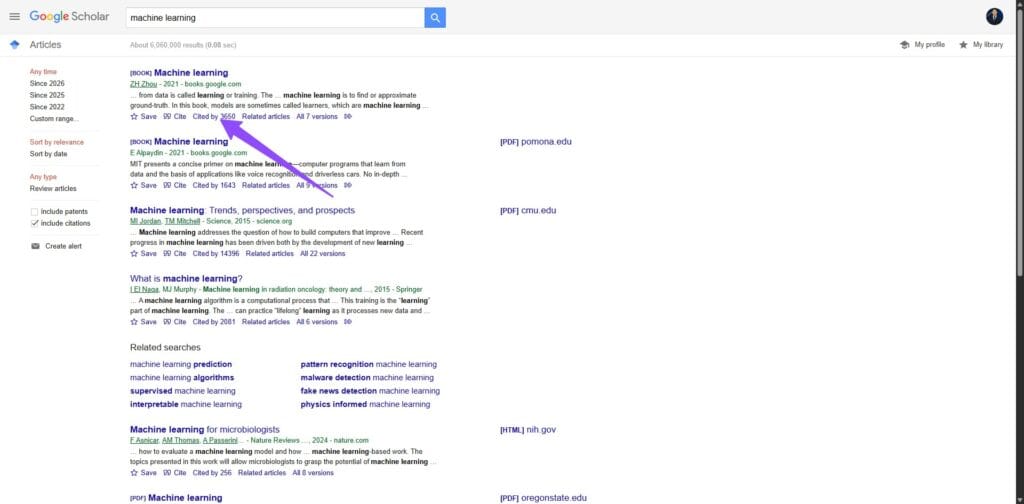
Step 2: Click “Cited by”
Click the Cited by link beneath the paper. This opens a list of all articles that reference it.
Step 3: Create the Alert
On this page, click Create alert in the sidebar. This ensures you receive updates whenever new citations appear.
Example: If you are tracking a landmark study in machine learning, this alert will notify you every time a new paper builds on that research.
How to Set Up Google Scholar Alerts Directly from Search Results
Many users overlook this faster method. Instead of navigating through the alerts menu, you can create an alert directly from any search results page in Google Scholar.
Step 1: Perform a Search
Go to Google Scholar and enter your topic, keyword, or author name as you normally would.
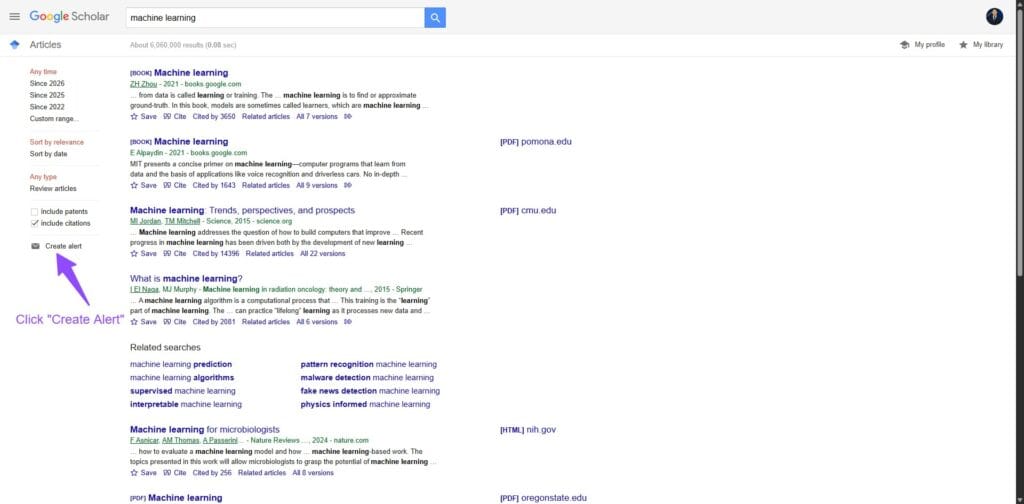
Step 2: Click “Create Alert”
On the left-hand side of the results page, click the Create alert option. This will automatically use your current search query.
Step 3: Confirm Your Email
Enter or confirm your email address, adjust the number of results if needed, and click Create Alert.
Why this method is useful: It ensures your alert matches real search results, reducing irrelevant notifications.
Managing and Optimising Existing Alerts
As your research evolves, your alerts may become less relevant. It is important to regularly review and organise your notification list to avoid “inbox fatigue.”
- Editing Queries: If an alert is providing too much “noise,” click the Cancel button next to it and create a new, more specific one.
- Consolidating Alerts: If you have multiple alerts for similar topics, try to combine them using the OR operator to reduce the number of emails you receive.
- Checking Spam: Occasionally, these emails may be filtered by your provider. Ensure you mark Google Scholar as a “safe sender” to stay updated.
How to Edit or Delete Google Scholar Alerts
Over time, your alerts may become outdated or too broad. Regularly reviewing them helps keep your inbox relevant and manageable.
Step 1: Open the Alerts Page
Go to Google Scholar and click the menu icon, then select Alerts.
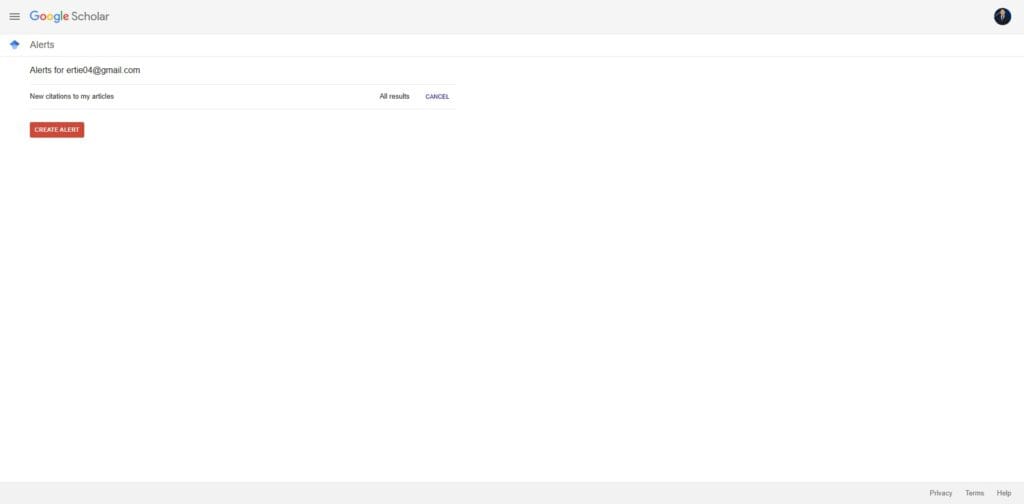
Step 2: Review Your Alerts
You will see a list of all active alerts along with their queries and email settings.
Step 3: Delete or Modify
- Click Cancel to delete an alert that is no longer useful.
- If you want to refine an alert, delete it and recreate it with a more specific query.
Best practice: Review your alerts every few months to ensure they still match your research goals.
Common Mistakes to Avoid
To ensure your alerts remain a helpful tool rather than a distraction, avoid these common errors:
- Using Overly Broad Terms: Searching for a single word like “History” will result in hundreds of irrelevant daily emails. Use specific phrases.
- Ignoring Date Filters: While alerts naturally focus on new content, checking the “Include citations” box can sometimes flood your inbox with older papers that have simply been newly cited.
- Forgetting to Update: Researchers often leave alerts active long after a project has finished. Set a calendar reminder to prune your alerts every few months.
Common Problems and Fixes
While Google Scholar alerts are reliable, users occasionally run into issues. Here are the most common problems and how to solve them.
Not Receiving Alerts
- Check your spam or promotions folder.
- Ensure your email address is correctly entered and verified.
- Add Google Scholar as a safe sender in your email settings.
Too Many Irrelevant Results
- Use quotation marks for exact phrases.
- Add negative keywords using the minus operator (e.g. “AI” -robotics).
- Make your query more specific.
No Results or Very Few Updates
- Your topic may be too niche or overly restrictive.
- Try broadening your keywords slightly.
Alerts Stopped Suddenly
- Check if the alert was accidentally deleted.
- Log out and back into your Google account.
- Recreate the alert if necessary.
Final Thoughts
Google Scholar alerts are a powerful tool to stay on top of your field. By creating precise queries and managing your settings regularly, you can save time and discover new research efficiently. It is one of the most effective ways to ensure your research remains cutting-edge.
Ready to master Google Scholar for your research?
Finding a single paper is helpful, but mastering the entire platform is essential for a successful literature review. If you are navigating your own research journey, explore our comprehensive guide on How to Use Google Scholar for Research to fully optimise your academic workflow.
Frequently Asked Questions
How many Google Scholar alerts can I have?
There is no official limit to the number of alerts you can create. However, it is best to keep your list organised so that you can actually process the information you receive.
Can I set up alerts for someone else’s citations?
Yes. You can create an alert for any search query. If you want to know when a specific landmark paper is cited, you can set an alert for that paper’s title or its unique identifier.
What should I do if I am not receiving my alert emails?
First, check your spam or “Promotions” folder. It is also worth visiting the Alerts page in Google Scholar to ensure the alert is still active and that your email address is verified.