

I have spent many hours navigating complex academic databases, and I have found that the right tools can transform a frustrating search into a seamless process. In my experience, finding the best Chrome extensions for research is the most effective way to manage a growing library of sources without losing focus. I have curated this list to ensure you can spend less time on manual formatting and more time engaging with the actual literature. It’s a strategy that has saved me countless days of tedious work.
Best Chrome Extensions for Research
I have spent years refining my browser setup because, as any researcher knows, a cluttered workflow is the quickest way to lose a day of progress. I have found that finding the Best Chrome Extensions for Research is not just about adding features; it is about reclaiming time from the “busy work” of academia. These are the tools I rely on to keep my focus where it belongs: on the analysis and the writing.
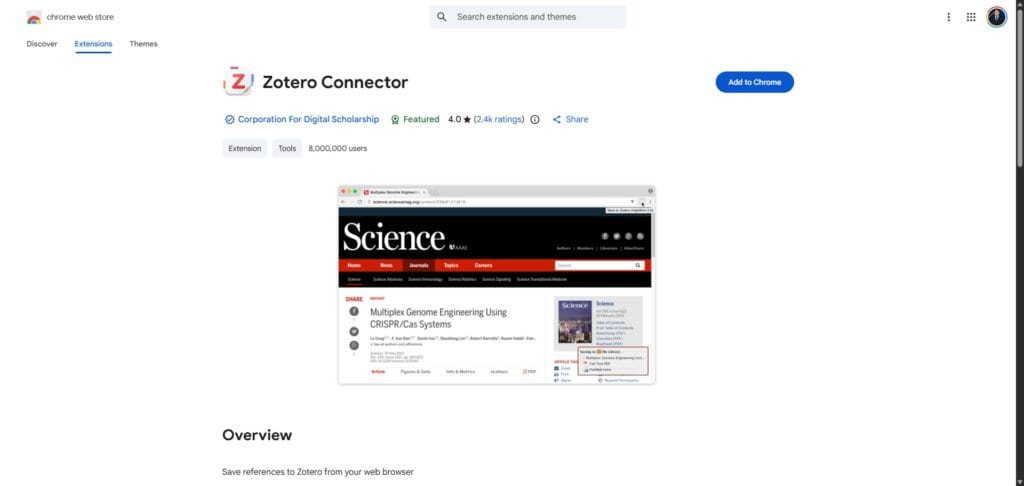
1. Zotero Connector
I consider this extension the most essential tool in my arsenal for managing a growing library. It effectively bridges the gap between my browser and my local database, ensuring that no interesting paper ever gets lost in a sea of open tabs.
- Why I use it: It allows me to grab full metadata and PDFs with a single click, which completely eliminates the tedious task of typing out citation details by hand.
- What I love about it: It recognises almost any source type, from journal articles to news reports, and files them away with the correct bibliography information every time.
- How it saves time: It syncs directly with the Zotero desktop application, so my sources are ready to be cited in my manuscript the moment I finish my search session.
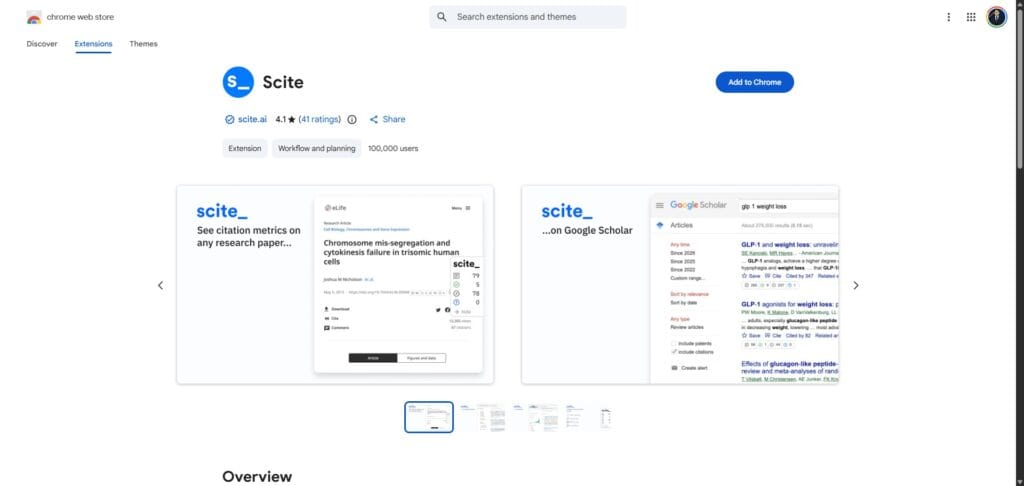
2. scite.ai
In my opinion, the scite extension is a revolutionary addition to any researcher’s toolkit because it changes how we evaluate the reliability of a paper. It moves beyond simple citation counts by showing you exactly how other scientists are discussing the work in their own publications.
- Why I use it: I rely on it to see if a paper’s findings have been supported, contrasted, or simply mentioned by subsequent research, which is vital for verifying the “truth” behind a claim.
- What I love about it: The “Smart Citation” badges appear directly on Google Scholar and PubMed search results, allowing me to see the academic consensus on a topic at a glance.
- How it saves time: It prevents me from building my research on debunked or highly contested studies by flagging contrasting results before I even open the PDF.
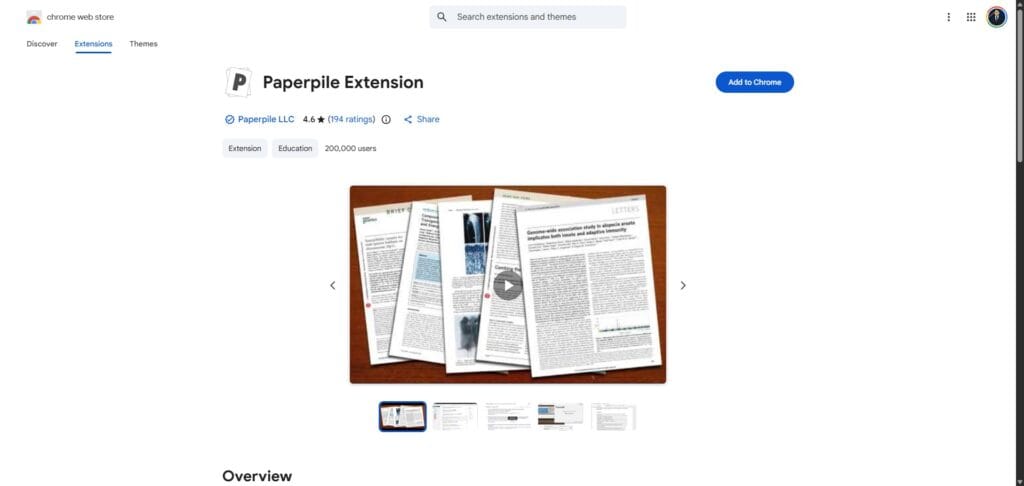
3. Paperpile
If your entire workflow is built around the Google ecosystem, I find that Paperpile is often the most logical choice. It is a full-featured reference manager that lives entirely within the browser, making it a favorite for those of us who prefer a lightweight setup.
- Why I use it: I use it to manage my library directly through Google Drive, ensuring that all my PDFs are automatically backed up and searchable across all my devices.
- What I love about it: The integration with Google Docs is flawless; it allows me to insert citations and generate bibliographies without ever needing to toggle between different software windows.
- How it saves time: It features a one-click “save” button that not only grabs the citation but also downloads and organizes the PDF into the correct folder instantly.
4. Unpaywall
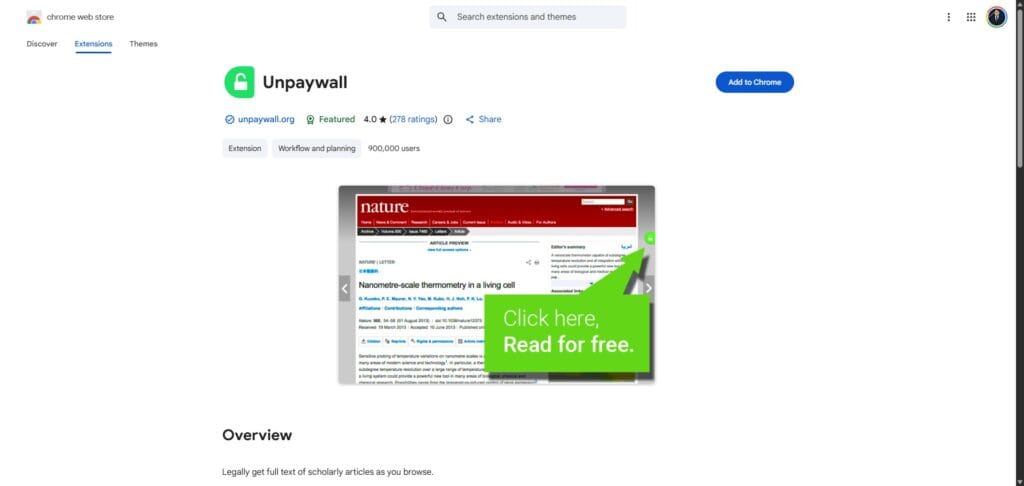
I know the frustration of hitting a paywall right when a paper seems perfect for my work. Unpaywall is a simple, lightweight tool that I keep active at all times to find legal, free versions of research papers.
- Why I use it: It provides a legal and ethical way to access academic content that is often hidden behind expensive publisher paywalls.
- What I love about it: The small green padlock icon that appears on the side of my screen is a welcome sight that signals a free PDF is just a click away.
- How it saves time: It automatically searches thousands of institutional repositories so I do not have to hunt for a manuscript version myself.
5. Perplexity AI Companion
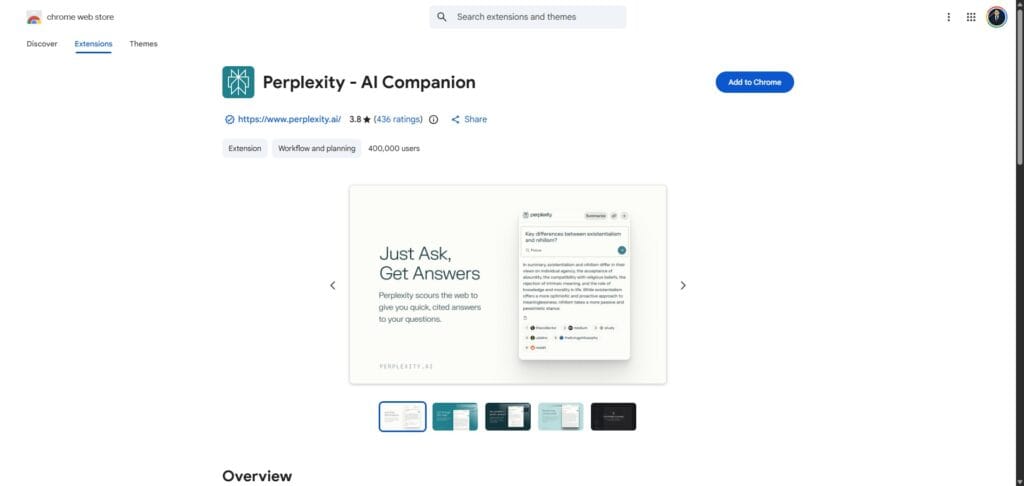
When I am exploring a brand-new topic and need to get my bearings quickly, this extension acts as my digital librarian. It provides cited answers to my questions in real-time, right in the browser tab.
- Why I use it: It functions as a hybrid between a search engine and a research assistant, giving me context for the papers I am currently reading.
- What I love about it: I appreciate that every response includes citations, allowing me to verify the information immediately and maintain high academic standards.
- How it saves time: I use the summary feature to get a five-bullet breakdown of long-form articles, which I find is the fastest way to grasp a paper’s main argument.
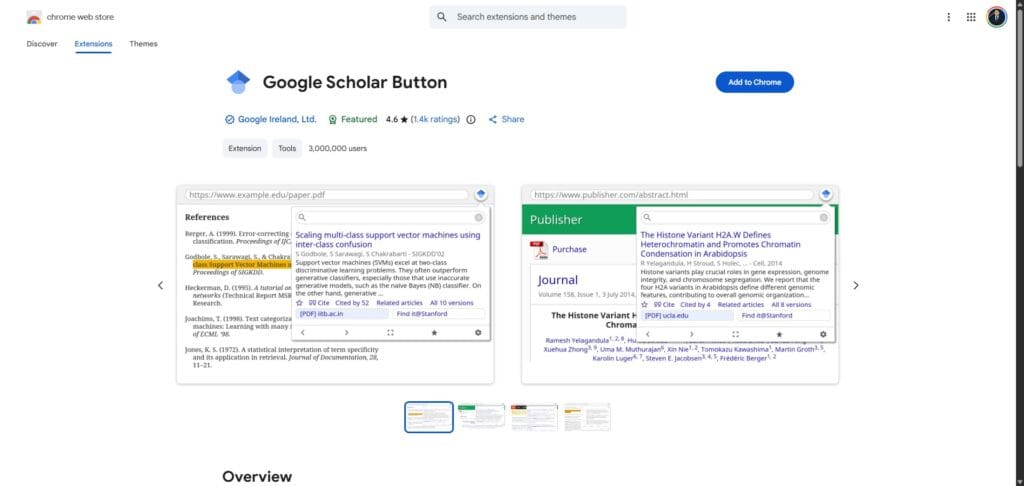
I have found Google Scholar Button to be one of the simplest yet most effective tools for quick verification. It allows me to highlight a title on any webpage and search for the full academic paper without needing to open a new tab.
- Why I use it: It provides an instant way to see if a paper I have just read about in a news article or blog post is available in a peer-reviewed format.
- What I love about it: The “Cite” button is a lifesaver; it gives me a perfectly formatted citation in APA, MLA, or Harvard style in a matter of seconds.
- How it saves time: It eliminates the need to manually navigate to the Google Scholar homepage and copy-paste titles, keeping me focused on my reading.
7. Scholarcy
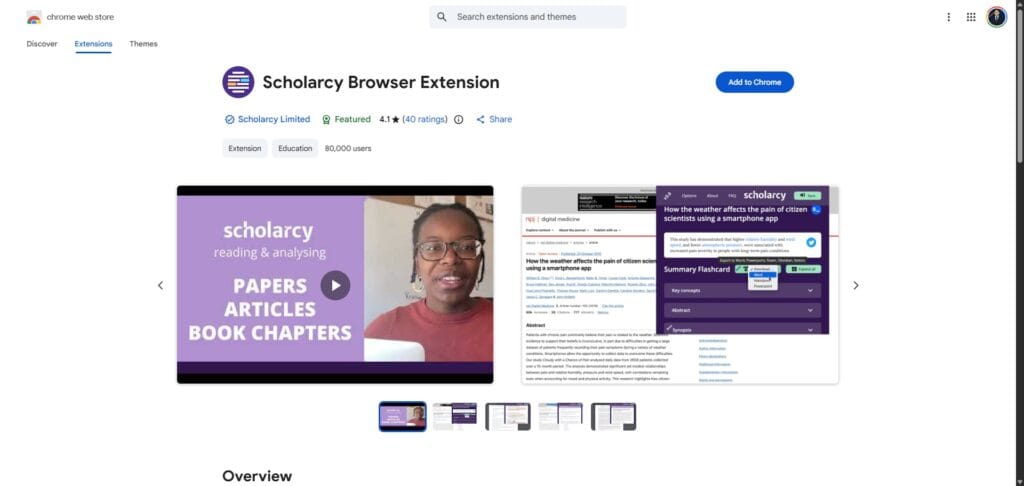
When I am faced with a particularly dense literature review, I turn to Scholarcy. It is an AI-powered tool that reads through articles and breaks them down into easily digestible “summary flashcards.”
- Why I use it: It helps me quickly identify the key findings, limitations, and methodology of a paper without having to skim through ten pages of text first.
- What I love about it: It automatically extracts tables and images from the PDF, making it much easier for me to review data visualisations at a glance.
- How it saves time: By providing a structured summary, it allows me to decide in less than a minute whether a paper is worth a full, deep reading.
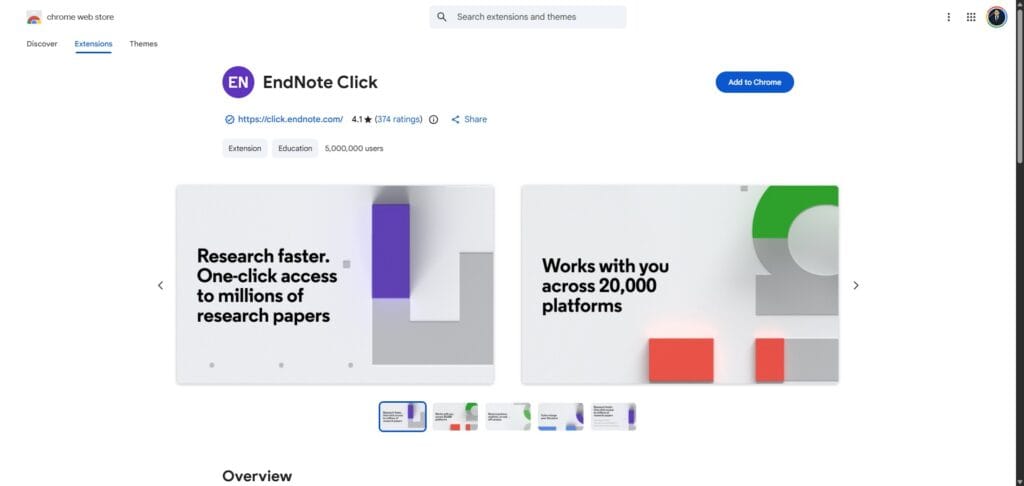
8. EndNote Click (formerly Kopernio)
I rely on EndNote Click to solve the problem of missing PDFs. It works in the background to find the best available version of an article, whether it’s from my university library or an open-access repository.
- Why I use it: It provides a one-click “View PDF” button that appears directly on the search results page, bypassing multiple login screens and publisher landing pages.
- What I love about it: It automatically saves the PDFs I view into a personal “locker,” meaning I can access my recently read papers from any device.
- How it saves time: It integrates directly with my institutional login, so I do not have to waste time searching for the “Sign in via your institution” link on every different journal site.
9. Hypothesis
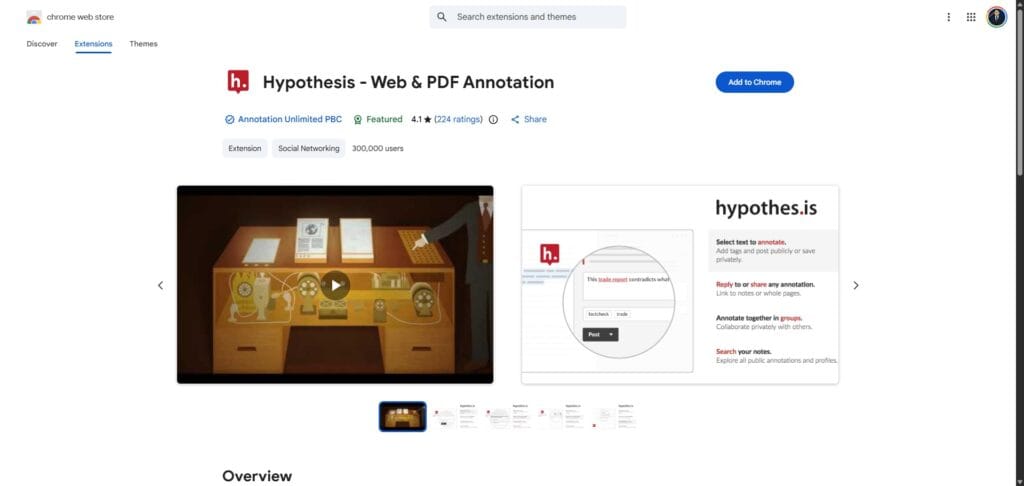
Research is rarely a solitary task for me, and Hypothesis makes it a collaborative experience. It allows me to highlight and annotate any webpage or PDF directly in my browser.
- Why I use it: It serves as a digital highlighter that allows me to leave notes for myself or my co-authors directly on the source material.
- What I love about it: The ability to create private groups for specific projects means I can share my thoughts and critiques with my team without cluttering the public web.
- How it saves time: Instead of keeping a separate document for notes, I can see my annotations right next to the text, which makes the writing process much more fluid.
10. LazyScholar
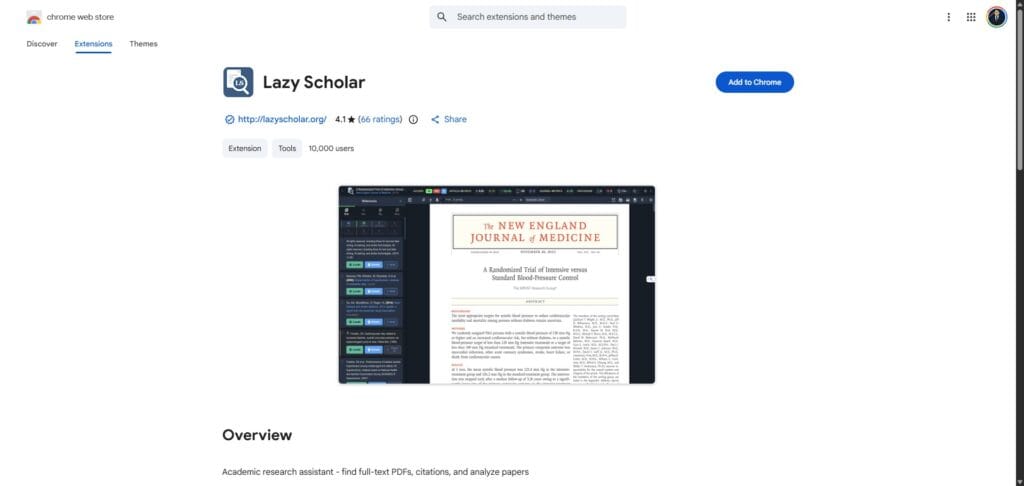
LazyScholar is a tool I use for its ability to automate the background checks that I often forget to do. It provides instant metrics and citation counts the moment I land on a paper’s page.
- Why I use it: It checks if there is a free version of a paper and provides the citation count and Altmetric score automatically, giving me a sense of the paper’s impact.
- What I love about it: It includes a “Quick Citation” feature that I find very handy for grabbing a reference without opening any other tools.
- How it saves time: It can even notify me if a paper has been retracted or if there are published comments on it, which prevents me from citing unreliable data.
Final Thoughts on Best Chrome Extensions for Research
I believe that building a personalised research stack is a continuous journey, but starting with these specific tools will provide a significant advantage in the modern academic landscape. I have observed that as technology evolves, the way we interact with data shifts, yet the core requirement for accuracy and speed remains unchanged. It is about selecting the extensions that fit your specific workflow and allowing them to handle the repetitive tasks while you focus on making meaningful discoveries. I encourage you to experiment with these options to see which combination best supports your unique research journey.
Ready to master your research workflow?
Accessing papers is the foundation of any great study, but sometimes extensions alone are not enough to bypass every barrier. If you are looking for more ways to access academic content legally and efficiently, explore our comprehensive guide on Sci-Hub Alternatives to ensure you never lose access to the literature you need.
Frequently Asked Questions
What is the best Chrome extension for managing citations?
In my experience, the Zotero Connector remains the top choice for most researchers due to its seamless integration with the Zotero desktop app and its ability to scrape metadata from almost any academic source accurately.
Are Chrome extensions for research safe to use?
Generally, yes. I recommend sticking to well-known extensions like those mentioned in this list, as they are widely used by the academic community and regularly updated for security purposes.
Can I use these extensions on other browsers like Edge or Brave?
Yes, you can. Since browsers like Microsoft Edge and Brave are built on Chromium, they are compatible with almost all the Best Chrome Extensions for Research found in the Chrome Web Store.
Do I need a paid subscription for these research extensions?
Most of the tools I have listed offer a generous free version. While some, like scite.ai or Scholarcy, have premium tiers for advanced features, their basic extensions provide significant value at no cost.
How do I keep my Chrome browser fast with many extensions installed?
It’s best to only keep the extensions you use daily active. I suggest using an extension manager to disable research tools when you are not in a dedicated study session to preserve your system memory.